- Generate unique ED25519 keypairs per device - never copy private keys across machines.
- Use ~/.ssh/config Host aliases to map per-device IdentityFile keys to target servers seamlessly.
- Implement single-click remote revocation by removing specific public keys from authorized_keys.
If you’ve ever sat down at a new laptop trying to remember which of four id_ed25519 files gets you into the staging server, you already know the real problem with managing multiple SSH keys across devices: it isn’t generating them, it’s keeping track of which key opens which door once you’re juggling a work laptop, a personal machine, a spare desktop, and a phone you occasionally SSH from.
The failure mode is familiar. You copy a private key onto a new device to save time, forget which device has access to what, then can’t answer a basic security question when a laptop goes missing. None of this is a technology problem, it’s an organization problem, and it has a workable answer.
Picture a typical setup: a work laptop, a personal machine you sometimes deploy from on weekends, a spare desktop that got pressed into service during a migration, and a phone with a terminal app for checking on a server from the couch. Four devices, each with its own key or, worse, all sharing the same one copied around because it was faster at the time. That’s the starting point most people are actually working from, not a clean slate.
Why managing multiple SSH keys across devices gets messy fast
Every new device you SSH from is another key, another line in some server’s authorized_keys, and another thing to remember when you audit access later. Add a couple of job changes, a stolen laptop replacement, and a policy that says rotate keys yearly, and most people end up with a ~/.ssh folder that looks like a junk drawer: id_rsa, id_rsa_old, id_rsa_work, id_ed25519_new, none of it labeled with what it actually unlocks.
This gets worse for teams. A five-person team with two devices each and access to a dozen servers is tracking up to 120 individual key-to-host relationships by memory, a spreadsheet, or, worst case, nothing at all.
The underlying issue is that nobody owns the inventory. Rotating a password has an obvious owner: whoever holds the account. Rotating a key that’s copy-pasted across three machines and pasted into a shared onboarding doc has no clear owner at all, so it just doesn’t happen until something forces the question, usually a departing employee or a lost device.
One SSH key per device, or the same key everywhere?
Generate a separate key pair for every device: laptop, desktop, phone, CI runner. Reusing one private key across devices might feel efficient, but it means a single compromised laptop hands over access to everything that key touches, and you can’t revoke one device without breaking all of them.
One key per device flips that. Compromise is contained to whatever that specific key can reach, and revoking a lost device becomes a matter of removing one public key from each host’s authorized_keys, not rotating every server your team touches.
ssh-keygen -t ed25519 -C "rafi@work-laptop-2026" -f ~/.ssh/id_ed25519_work_laptopED25519 is the right default in 2026: shorter keys, faster signing, and no known practical weaknesses, versus RSA, which needs 4096 bits to reach comparable security with worse performance.
A passphrase-protected key doesn’t have to mean typing it on every connection. Load it into ssh-agent once per session, or once per login on a machine you trust, and every subsequent connection from that device reuses the unlocked key in memory instead of prompting again.
eval "$(ssh-agent -s)"
ssh-add ~/.ssh/id_ed25519_work_laptop
A naming convention for multiple SSH keys across three or more devices
The moment you have more than two keys, a naming convention stops being optional. A pattern that scales: id_ed25519_<device>_<year>. So id_ed25519_worklaptop_2026, id_ed25519_phone_2026, id_ed25519_homedesktop_2026.
The year isn’t decoration, it makes a key’s age visible at a glance, which is the whole input to a rotation decision. See a file named id_ed25519_worklaptop_2023 sitting in your folder and you already know it’s overdue, no spreadsheet required. For the rotation itself, when and how, not just naming, see SSH key rotation best practices.
If a device serves more than one purpose, for example a laptop used for both personal projects and client work, add a purpose tag rather than reusing one key for both: id_ed25519_worklaptop_client-acme_2026 alongside id_ed25519_worklaptop_personal_2026. It’s more typing once, and considerably less guesswork later when you’re deciding what to revoke after a contract ends.
Mapping keys to hosts with ~/.ssh/config, so you stop memorizing anything
A naming convention only helps if something enforces it at connection time. That’s what ~/.ssh/config is for: it maps a host alias to the exact key it should use, so you never have to remember or type -i by hand.
Host staging
    HostName staging.example.com
    User deploy
    IdentityFile ~/.ssh/id_ed25519_worklaptop_2026
    IdentitiesOnly yes

Host prod-db
    HostName db.prod.example.com
    User deploy
    IdentityFile ~/.ssh/id_ed25519_worklaptop_2026
    IdentitiesOnly yes
IdentitiesOnly yes matters more than it looks. Without it, SSH offers every key loaded in your agent to every host, which is both slow and a quiet way to leak which keys exist to a server you don’t fully trust.
Keep the Host alias itself identical across every device, even though the IdentityFile line underneath it points at a different key on each one. Typing ssh staging should work the same way from your laptop and your desktop. The alias is muscle memory, the identity file is per-device plumbing behind it, and the two shouldn’t be tangled together in your head.
Why syncing SSH keys across devices is the wrong move
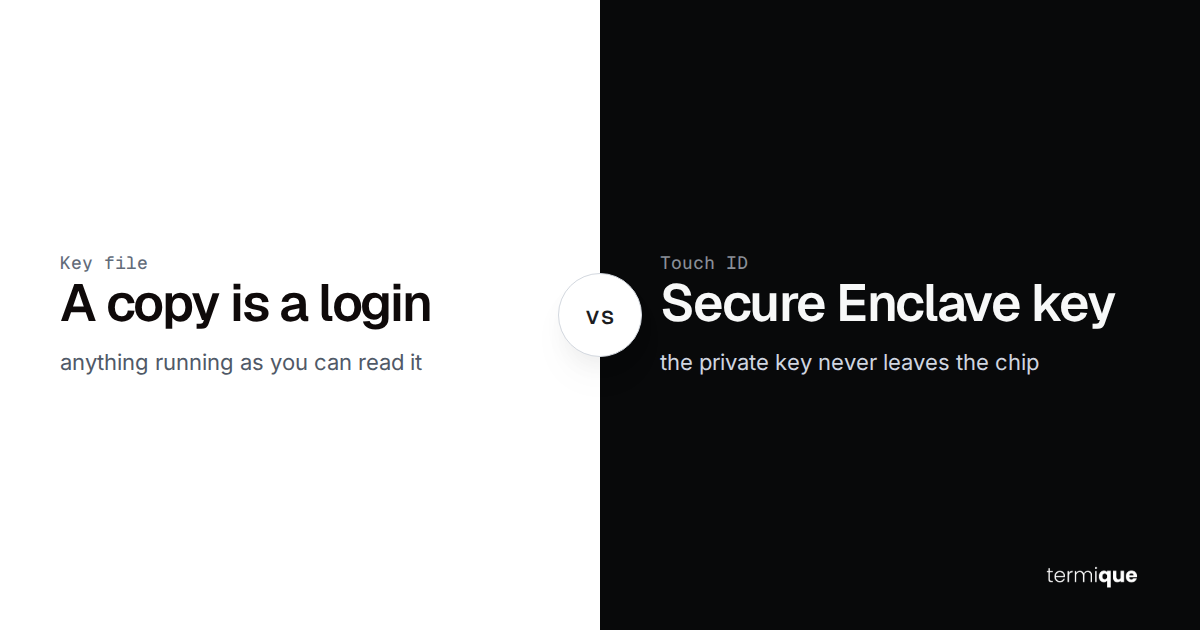
It’s tempting to copy ~/.ssh/id_ed25519 onto a new laptop over AirDrop, or drop it in a synced folder like Dropbox or iCloud Drive, to skip re-generating and re-authorizing a key. Don’t. The moment a private key exists in two places, you’ve doubled the number of places it can leak from, and broken the entire premise of one-key-per-device: you can no longer revoke one device without revoking both.
What’s safe to sync across devices is metadata, not secrets: your list of hosts, which groups they belong to, your saved command snippets, your ~/.ssh/config structure. None of that grants access on its own. The private key itself should be generated on the device that will use it, and stay there.
For the credential-storage side of this problem, how encryption works so a synced credential store never exposes plaintext, see how to manage SSH credentials across multiple devices.
If you genuinely need a key to be portable across devices, for example a single hardware security key you carry between a work and personal laptop, use a physical FIDO2/U2F token instead of copying a software key file. The private material never leaves the hardware, and losing the token is a clean, single revocation event instead of a file that might exist on three machines and one backup drive you forgot about.
How do you know which keys are still active?
Authorized_keys files don’t expire on their own. A key added for a contractor two years ago is still valid today unless someone removes it. Run a quarterly audit: for every host you manage, list authorized_keys and cross-reference every entry against your current device inventory.
cat ~/.ssh/authorized_keys | awk '{print $NF}'This only works if every key was generated with a meaningful comment in the first place, which is why the naming convention above earns its keep here: id_ed25519_worklaptop_2026 reads as a label, not just a blob of base64.
For more than a couple of hosts, run the same check across all of them in one pass instead of connecting to each by hand.
for host in staging prod-db prod-app; do
  echo "== $host =="
  ssh "$host" 'awk "{print \$NF}" ~/.ssh/authorized_keys'
done
Anything that doesn’t map to a device you currently own, or a teammate you can still name, gets removed. Treat an unrecognized entry the same way you’d treat an unrecognized login: as something to investigate before you assume it’s harmless.
What to do the moment a device is lost or stolen
This is revocation, not rotation, and the two are different operations. Rotation is a scheduled swap of a key that’s still under your control. Revocation is an emergency response to a key that might not be.
The moment a device goes missing:
- Remove that device’s public key from every host’s authorized_keys immediately, don’t wait for a maintenance window.
- If the device had a passphrase-protected key and you’re confident the passphrase wasn’t captured, this may be enough on its own.
- Generate a fresh key pair for the replacement device rather than reusing the old private key from a backup.
- Check each host’s audit log, if you keep one, for connections from that key in the days before you noticed the device was gone.
That last point is where a per-command audit trail earns its cost: it tells you whether the missing window matters, or whether it’s just a lost laptop with no evidence of misuse.
A checklist for onboarding and offboarding devices
- Onboarding: generate a new key pair on the device itself, name it with the device-and-year convention, add the public key to every host it needs, add a Host block to that device’s ~/.ssh/config.
- Onboarding: record the device in whatever inventory you keep, even if that inventory is just a note, so the next audit has something to check against.
- Offboarding: remove the public key from every host’s authorized_keys, delete the local config entries, and if the device is being reissued to someone else, wipe it before handing it over.
- Offboarding: confirm the removal actually took effect by attempting a connection from the old key and expecting it to be rejected, don’t just assume the edit saved correctly.
Neither step should require touching a private key that isn’t already on the device you’re setting up or removing.
How termique keeps your device-to-host map in sync, without syncing the key itself
This is exactly the split the sections above describe. Host lists, groups, and command snippets sync across your devices end-to-end encrypted, so a new laptop already has your staging, prod, and db aliases named and grouped the moment you sign in. Private keys never leave the device: they’re generated locally and stored in the OS keychain (Keychain on macOS, Credential Manager on Windows, libsecret on Linux), never the server’s database, and never part of the sync payload.
termique’s SSH key management for teams guide covers the broader picture: rotation policy, team sharing, and audit logs. The encryption model itself is detailed in how to manage SSH credentials across multiple devices. If the lost-device scenario above sounds familiar, termique’s host sharing lets you revoke one teammate’s or one device’s access without touching anyone else’s, and its per-command audit log gives you the evidence trail the offboarding checklist depends on.
termique is free to start: 3 hosts, unlimited PTY terminal sessions, and encrypted cloud sync of everything except the keys themselves. For broader practices beyond key handling, see the complete guide to SSH security.