A new laptop arrives, and the first hour disappears into busywork: reinstalling a terminal, hunting for the right SSH key, retyping host addresses from memory. None of that is remote development. A proper remote development workflow setup on a new laptop should take you from unboxed to connected to every server you manage in under 10 minutes, not an afternoon of copying .pem files between drives.
Why a new laptop shouldn’t mean rebuilding your remote development workflow from scratch
Laptop swaps happen more often than most people plan for: an upgrade cycle, a company reissue, a device that got lost or stolen, a freelancer moving between a personal and a client machine. Each time, the same four things need rebuilding: the terminal and shell environment, SSH keys and known_hosts entries, the list of hosts and their credentials, and whatever remote-editing setup you rely on.
Do this by hand and it eats an hour or two: retyping IPs from memory, digging through an old backup for a private key, re-accepting host fingerprints one at a time. Do it with a system in place and it’s a 10-minute checklist. The difference isn’t willpower, it’s whether your setup was designed to travel with you in the first place.
The cost isn’t just the lost hour either. A rushed rebuild is when mistakes happen: a private key copied to a shared drive to save time, a host fingerprint accepted without reading it because you’re already behind schedule, a snippet or alias quietly lost because it only ever lived on the old machine. Treat the first 10 minutes on a new laptop as a small, repeatable ritual instead of an improvised scramble, and none of that has to happen.
What actually needs to be restored in the first 10 minutes?
Before writing a checklist, it helps to name exactly what “remote development workflow” means in practice. It’s four layers, in the order you’ll actually need them:
- Terminal and shell – your shell of choice, prompt, aliases, and any dotfiles that make the terminal feel like yours instead of a stock install.
- SSH keys and known_hosts – the key pairs that authenticate you to remote servers, and the fingerprint records that confirm you’re talking to the right server and not an impostor.
- Host list and credentials – the actual inventory of servers you connect to, grouped and tagged, with the right user, port, and auth method attached to each.
- Editor remote plugins – VS Code’s Remote-SSH extension, JetBrains Gateway, or whatever lets you edit code on a remote filesystem without a local checkout.
Skip the checklist and you’ll restore these in a random order, usually driven by whatever breaks first. Follow it and you restore them in the order that unblocks the most work per minute spent.
The 10-minute remote dev workflow checklist for a new laptop
This is the step-by-step version, broken into four two-to-three-minute blocks. Each block assumes the previous one is done, so the whole thing runs start to finish without backtracking.
Minutes 0-2: terminal and shell
Install your shell of choice if it isn’t the default, then pull your dotfiles from wherever you keep them, ideally a git repository rather than a random USB stick. A minimal bare-repo or a tool like chezmoi turns this into one command:
git clone https://github.com/you/dotfiles.git ~/.dotfiles
cd ~/.dotfiles && ./install.sh
source ~/.zshrc
If you don’t have a dotfiles repo yet, this is the moment to start one. Every future laptop swap gets faster from here on.
Minutes 2-5: SSH keys
This is the step people get wrong most often, usually by emailing a private key to themselves or dragging it over on an unencrypted USB drive. Neither is necessary. If you already store keys in an end-to-end encrypted vault, sign into it and the key material comes down encrypted, decrypted locally with your own master password, never in plaintext over the network. If you’re starting fresh or the old key is due for rotation anyway, generate a new one instead of moving the old one at all:
ssh-keygen -t ed25519 -C "you@new-laptop"Either path, a private key should end its trip in the OS keychain (Keychain on macOS, Credential Manager on Windows, libsecret on Linux), not sitting as a plain file in ~/.ssh.
Minutes 5-8: reconnect to your hosts
This is where a synced host list earns its keep. Instead of retyping every hostname, port, and username from memory or an old note, your host list, groups, and tags come down with your account and are ready to search and connect. If you’re managing hosts by hand instead, restore your ~/.ssh/config with the same Host aliases you used before:
Host prod-web
  HostName 203.0.113.12
  User deploy
  IdentityFile ~/.ssh/prod_ed25519
  Port 2202
If you also run AI coding agents over SSH against a remote server, this is also the point to reconnect that context, since an agent working against the wrong host or a stale key fails in confusing ways.
Minutes 8-10: verify
Don’t skip verification just because the setup felt fast. Confirm your keys are actually loaded and usable, then connect to one host as a smoke test:
ssh-add -l
ssh prod-web "uptime"
On the first connection to each host, you’ll get a fingerprint prompt. Read it, don’t reflexively accept it. That single moment is the entire point of known_hosts, and skipping it defeats the purpose of everything else in this checklist.
Last, open your editor’s remote extension (VS Code’s Remote-SSH, JetBrains Gateway, or equivalent) and connect to the same host you just smoke-tested from the terminal. This is the step people forget, then discover ten minutes later when they try to open a project remotely and nothing about the connection matches what they just verified worked from the command line. Confirming both paths now means you won’t debug a second, unrelated connection failure later in the day.
How does termique’s encrypted sync cut hours down to minutes?
The time savings above come from one distinction: what’s safe to sync automatically, and what should never leave your device unencrypted. termique’s account sync carries your host list, groups, tags, snippets, and preferences across devices, so step three of the checklist above is mostly done before you type a single command. Credentials are encrypted on-device with AES-256-GCM before anything reaches the network, and the encryption key itself is derived locally from your master password via PBKDF2, so the server only ever holds ciphertext it cannot read.
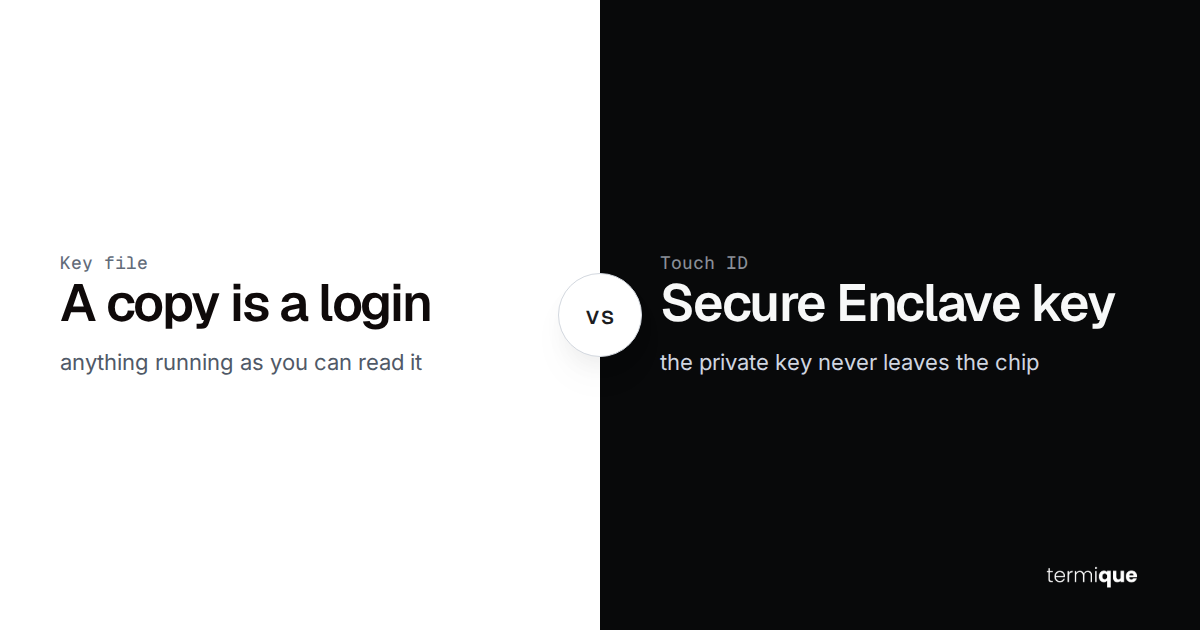
Private keys go a step further and live in the OS keychain rather than a database at all. That’s a deliberate trade-off: it means there’s no password-reset path if you forget your master password, by design, but it also means a server breach on termique’s side exposes nothing usable. For the deeper mechanics of this threat model, see managing SSH credentials across multiple devices.
Compare that to rebuilding the same setup manually: recreating each host entry by hand, testing which key belongs to which server because the mapping only existed in your head, re-establishing known_hosts trust one connection at a time. None of those steps are individually slow, but stacked across a dozen servers they’re the difference between a 10-minute checklist and a lost afternoon. The time saved scales with how many hosts you manage, not just whether you use a synced tool at all.
What slows this setup down (and how to avoid it)
- Retyping host configs from memory. Every hostname, port, and username you reconstruct from memory is a chance to get one wrong and lose ten minutes debugging a connection refused error that was never about the server.
- Copying private keys insecurely. Email, Slack, or an unencrypted USB drive turns a five-minute key restore into a standing security liability that outlives the laptop swap itself.
- Skipping known_hosts verification. Accepting every fingerprint prompt without reading it removes the one check that protects you from connecting to an impostor server on a network you don’t fully trust, like new office wifi or a hotel connection.
How do you keep this workflow fast on your next device too?
The checklist above works because the pieces it depends on were already portable: dotfiles in a git repo, keys in an encrypted vault instead of loose files, a host list that lives with your account instead of your machine. Keep those three things true and every future laptop swap looks the same, regardless of how many servers you’ve added in between.
Pair this checklist with a few terminal productivity habits for remote developers so the fast setup carries into fast daily work, not just the first 10 minutes after unboxing.
FAQ: rebuilding your remote dev setup on a new laptop
Do you need to regenerate SSH keys on a new laptop?
Not automatically. If your existing key is backed up in an encrypted vault, reusing it is fine and faster. If you’re not certain of its history, or it’s due for rotation anyway, generate a fresh ed25519 key pair, add the public key to each host’s authorized_keys, and retire the old key once every host has switched over.
Is it safe to sync SSH credentials across devices?
Only if the encryption happens on your device before anything is transmitted. Encryption derived and applied locally, with the server storing ciphertext it cannot decrypt, is a fundamentally different risk than a service that decrypts your credentials on its own servers. Check whether a tool encrypts client-side before you trust it with a key.
What’s the fastest way to move dotfiles to a new machine?
Keep them in a git repository with a small install script, and clone plus run on the new machine. A bare-repo pattern or a tool like chezmoi turns what used to be manual file copying into a single command that takes under a minute.
Do you lose anything by restoring a remote workflow this fast?
No, provided the restore is coming from a real synced source and not a shortcut like reusing the same private key across machines without rotation, or disabling host key checking to avoid the fingerprint prompt. Speed and security aren’t a trade-off here: the fast path in this checklist is fast because the tedious parts (retyping configs, hunting for backups) are what’s eliminated, not the verification steps.
termique keeps your host list, groups, and snippets synced end-to-end encrypted across every machine you work from, so a new laptop starts most of the way reconnected instead of from zero. Free tier covers 3 hosts, 10 snippets, and unlimited SSH sessions. Pro is $5 a month for unlimited hosts and snippets, host sharing, and audit logs.