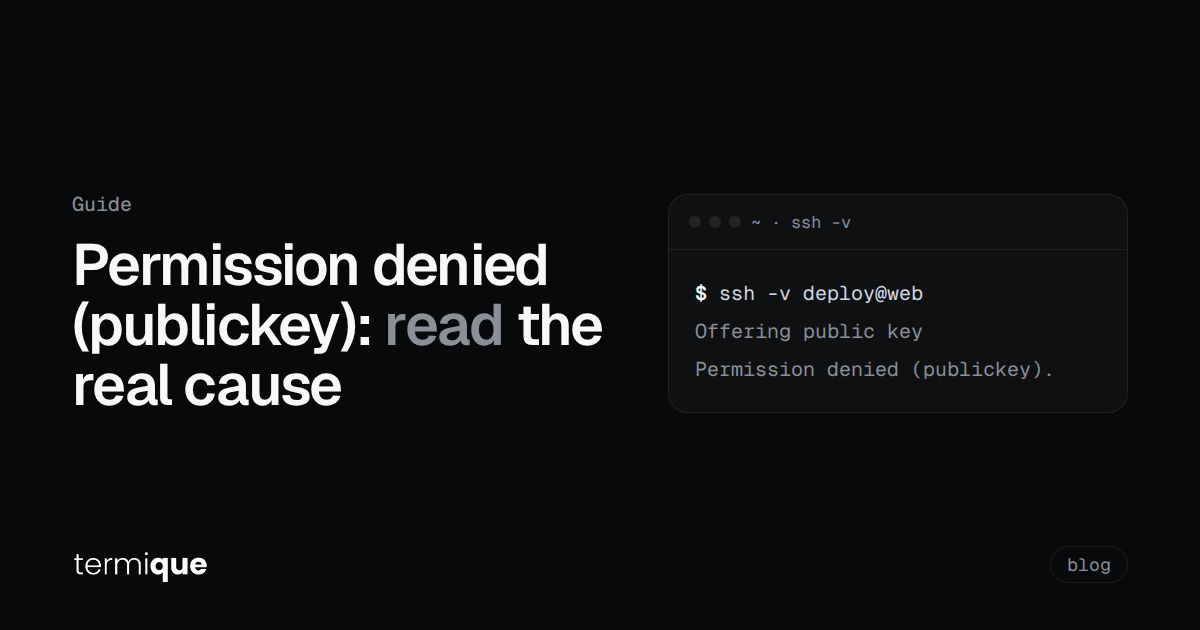
You added your key to the server, you run ssh, and you get one line back: Permission denied (publickey). No hint about which key, which file, or which side is wrong. That’s on purpose. The server tells an unauthenticated client as little as possible, so the real reason sits in two places you have to go and read: the client’s verbose output and the server’s auth log.
This guide walks through both. Every error message below was reproduced on OpenSSH 9.6 against a throwaway sshd on localhost while writing this, so the strings match what you’ll actually see. If your error says Connection refused or Connection timed out instead, you never reached authentication; start with connection refused vs timeout instead.
Quick Summary: What You’ll Learn
- What
Permission denied (publickey)means, and the one thing it rules out. - How to read
ssh -vto see which keys your client offered. - The sshd log lines that name the actual cause.
- The usual fixes: wrong user, wrong key, file modes, a key ssh refuses to load, and old
ssh-rsasignatures. - The GitHub, GitLab and Bitbucket version of the error.
- A short checklist you can run top to bottom.
What does “Permission denied (publickey)” mean?
It means the connection worked, the SSH handshake worked, and authentication failed. The word in brackets is the list of methods the server still accepts. (publickey) alone means the server has password login turned off, so a key is the only way in, and none of the keys your client offered were accepted for that user.
That leaves a short list of causes:
- You’re logging in as the wrong user, so the server checks the wrong
authorized_keys. - Your client offered a key, but not the one the server has.
- The server has your key but refuses to read the file because of its permissions.
- Your client never offered the key at all (it couldn’t load it, or it skipped it).
- The key type or signature algorithm isn’t accepted on one side.
You find out which one in about a minute with ssh -v.
How do you see which key ssh actually offered?
Run the same command with -v:
ssh -v deploy@203.0.113.10Skip the key exchange noise and look for the lines after Authentications that can continue. A successful login in our lab looked like this:
debug1: Authentications that can continue: publickey
debug1: Next authentication method: publickey
debug1: Will attempt key: good ED25519 SHA256:o7brbztlmr26oaVCi4sa6/VOiLZsMtjuTmXb/UsHdCE explicit
debug1: Offering public key: good ED25519 SHA256:o7brbztlmr26oaVCi4sa6/VOiLZsMtjuTmXb/UsHdCE explicit
debug1: Server accepts key: good ED25519 SHA256:o7brbztlmr26oaVCi4sa6/VOiLZsMtjuTmXb/UsHdCE explicit
Authenticated to 127.0.0.1 ([127.0.0.1]:2299) using "publickey".
And this is the same server with the wrong key:
debug1: Will attempt key: other ED25519 SHA256:R/2QZex7ZnX4f8qdaw07KYYfJHDWgSA88ufboBsdnMk explicit
debug1: Offering public key: other ED25519 SHA256:R/2QZex7ZnX4f8qdaw07KYYfJHDWgSA88ufboBsdnMk explicit
debug1: Authentications that can continue: publickey
debug1: No more authentication methods to try.
root@127.0.0.1: Permission denied (publickey).
Three patterns cover almost every case:
Offering public keyfollowed byAuthentications that can continue: the key was sent and the server said no. Either it’s the wrong key, or the server can’t read its file. Go to the server log.- No
Offering public keyline at all: your client never sent a key. Look for a warning above it (bad permissions, file not found) or aSkippingline. Offeringlines for keys you didn’t expect: ssh is trying agent keys or defaults before the one you meant. Pin the key (see below), and if you seeToo many authentication failures, that’s the same problem with more keys.
Will attempt key lists every candidate in order, with its SHA-256 fingerprint. Keep that fingerprint; you’ll compare it with the server side in a moment.
To check what your client will use before connecting, ssh -G prints the resolved config without opening a connection:
ssh -G deploy@203.0.113.10 | grep -E '^(user|hostname|port|identityfile|identitiesonly) 'With no IdentityFile configured, it lists the defaults it will look for (~/.ssh/id_rsa, ~/.ssh/id_ecdsa, ~/.ssh/id_ed25519 and a few more). If your key has any other filename, ssh won’t find it unless you tell it.
Is the server checking the right user and the right file?
The client can’t tell you why the server said no. The server’s auth log can. On systemd distros:
sudo journalctl -u ssh -n 50     # Debian, Ubuntu
sudo journalctl -u sshd -n 50    # RHEL, Fedora, Alma, Rocky
Systems running rsyslog also write to /var/log/auth.log (Debian family) or /var/log/secure (RHEL family). If the box only accepts keys and yours doesn’t work, you need console access or another account to read this; that’s worth knowing before you lock yourself out of something.
These are the lines our lab produced, one per cause:
Failed publickey for root from 127.0.0.1 port 37630 ssh2: ED25519 SHA256:R/2QZex7...
Invalid user nosuchuser from 127.0.0.1 port 37646
Authentication refused: bad ownership or modes for file /.../authorized_keys
Wrong user
Invalid user means the account doesn’t exist on that machine. The client still prints exactly the same Permission denied (publickey)., which is why this one wastes so much time. Cloud images are the usual trap: per the AWS docs, Amazon Linux and RHEL images use ec2-user, Ubuntu uses ubuntu, Debian uses admin. Logging into an Ubuntu instance as ec2-user fails with a perfectly good key. (If an EC2 connection hangs instead of being denied, that’s a network problem; see debugging SSH timeouts on EC2.)
Set the user per host in ~/.ssh/config so you don’t have to remember it:
Host web-prod
    HostName 203.0.113.10
    User ubuntu
    IdentityFile ~/.ssh/web-prod_ed25519
    IdentitiesOnly yes
IdentitiesOnly yes tells ssh to use only the configured identity files, even if your agent holds more keys. That keeps the offer list short and predictable.
Wrong key
Failed publickey ... ED25519 SHA256:... means the server read the file and the offered key isn’t in it. Compare fingerprints. On the server:
ssh-keygen -lf ~/.ssh/authorized_keysThat prints one fingerprint per key line. On your machine, ssh-keygen -lf ~/.ssh/web-prod_ed25519.pub prints the fingerprint of your public key. If you only have the private key, ssh-keygen -y -f ~/.ssh/web-prod_ed25519 prints its public half, which you can paste into authorized_keys (one key per line, no line breaks inside the key).
Wrong file
sshd doesn’t always read ~/.ssh/authorized_keys. The location comes from AuthorizedKeysFile, which can point elsewhere, list several files, or be overridden in a Match block. Ask sshd for its effective config instead of reading the file by eye:
sudo sshd -T | grep -iE '^(authorizedkeysfile|pubkeyauthentication|strictmodes) 'sshd -T is extended test mode: it validates the config and prints every setting as sshd will apply it.
Windows Server and Windows 10/11 OpenSSH have their own twist. For accounts in the Administrators group, Microsoft’s docs say the key goes in C:\ProgramData\ssh\administrators_authorized_keys, not the file in your user profile, and that file’s ACL must allow only Administrators and SYSTEM. Adding your key to C:\Users\you\.ssh\authorized_keys on an admin account is the classic “permission denied publickey windows” cause.
Why does sshd reject a key that’s in authorized_keys?
This is the Authentication refused: bad ownership or modes line. With StrictModes yes, which is the default, sshd checks the ownership and modes of the user’s files and home directory before accepting a login, and refuses if anything is writable by other users. In our lab, chmod 666 authorized_keys was enough: the key in the file was correct, the client printed Permission denied (publickey)., and only the server log said why.
The fix is the standard set of modes, run as the account owner:
chmod go-w ~
chmod 700 ~/.ssh
chmod 600 ~/.ssh/authorized_keys
Also check ownership with ls -ld ~ ~/.ssh ~/.ssh/authorized_keys. The files should belong to the account you log in as; if you created them with sudo, sudo chown -R deploy:deploy /home/deploy/.ssh puts them back.
Don’t fix this by setting StrictModes no. It hides the symptom and leaves a writable file that decides who can log in.
What if ssh won’t use your private key?
Sometimes the client is the one saying no. Two cases from the lab.
The private key is readable by other users:
@@@@@@@@@@@@@@@@@@@@@@@@@@@@@@@@@@@@@@@@@@@@@@@@@@@@@@@@@@@
@         WARNING: UNPROTECTED PRIVATE KEY FILE!          @
@@@@@@@@@@@@@@@@@@@@@@@@@@@@@@@@@@@@@@@@@@@@@@@@@@@@@@@@@@@
Permissions 0644 for 'goodloose' are too open.
It is required that your private key files are NOT accessible by others.
This private key will be ignored.
Load key "goodloose": bad permissions
root@127.0.0.1: Permission denied (publickey).
chmod 600 on the private key fixes it. This happens a lot after copying keys from a USB stick, a Windows share, or a zip. One detail worth knowing: in this test the server log showed Accepted key ... found at .../authorized_keys:1 and then Connection closed. The client offered the matching .pub file, the server said that key is fine, and then the client couldn’t produce a signature because it refused to load the private half. A server log that says “Accepted key” next to a failed login points at the client.
The key file doesn’t exist at the path you gave:
Warning: Identity file doesnotexist not accessible: No such file or directory.ssh warns and carries on with whatever other keys it can find, so the final error is the same. A typo in an IdentityFile path, or a key that only exists on your other laptop, is the usual suspect.
If your key has a passphrase and the prompt keeps rejecting it, that’s a different failure with its own error text; see why your SSH key passphrase won’t authenticate.
Why does an old RSA key suddenly fail?
OpenSSH 8.8 (September 2021) disabled RSA signatures using SHA-1, the ssh-rsa signature algorithm, by default. The key format didn’t change: an existing RSA key still works with rsa-sha2-256 and rsa-sha2-512, which OpenSSH has supported since 7.2. Trouble starts when one side only speaks the old algorithm, usually an old appliance, an old embedded sshd, or a client config that pinned ssh-rsa.
In the lab we forced the client to sign only with SHA-1 against a 9.6 server, and ssh -v showed:
debug1: Skipping ssh-rsa key rsa - corresponding algorithm not supported by server
debug1: No more authentication methods to try.
root@127.0.0.1: Permission denied (publickey).
Note what’s missing: no Offering public key line. The client skipped the key before sending it, so the server log only shows Connection closed by authenticating user.
For a legacy server you can’t upgrade, the OpenSSH release notes give a per-host stopgap:
Host old-host
    HostkeyAlgorithms +ssh-rsa
    PubkeyAcceptedAlgorithms +ssh-rsa
Scope it to that one Host, never Host *. The real fix is a new Ed25519 key; our ssh-keygen guide covers generating one properly. If the RSA failure is on your own client, search your config for a pinned PubkeyAcceptedAlgorithms ssh-rsa (without the +), which replaces the whole default list.
How do you fix it for GitHub, GitLab and Bitbucket?
Git hosts produce the same error with a few extra causes. Per GitHub’s troubleshooting docs:
- Always connect as
git.ssh -T your-username@github.comfails withPermission denied (publickey).The remote URL must begit@github.com:owner/repo.git. GitLab (git@gitlab.com) and Bitbucket (git@bitbucket.org) use the samegituser. - Test the connection directly:
ssh -T git@github.comshould greet you by username. Add-vto see which key was offered. - Don’t mix
sudoand git.sudo git pushruns as root and uses root’s keys, not the ones you generated. - Check the key is loaded:
ssh-add -l -E sha256lists agent keys with SHA-256 fingerprints, and you compare them with the list under your account’s SSH key settings.
If you have one key for work and one for personal repos, the host picks whichever key it sees first and that may belong to the other account. A host alias with its own IdentityFile and IdentitiesOnly yes fixes that; our post on managing multiple SSH keys across devices has the full config.
A checklist to run top to bottom
- Run
ssh -vand find theOffering public keylines. No offer means a client problem; offer then refusal means a server problem. - Confirm the username. Read the server log for
Invalid user. - Compare the offered fingerprint with
ssh-keygen -lf ~/.ssh/authorized_keyson the server. - Ask sshd where it reads keys:
sudo sshd -T | grep -i authorizedkeysfile. - Fix modes: home not group/world-writable,
~/.ssh700,authorized_keys600, all owned by the user. - Fix the private key:
chmod 600, correct path inIdentityFile. - On Windows admin accounts, use
C:\ProgramData\ssh\administrators_authorized_keys. - For an old RSA setup, look for a
Skipping ssh-rsa keyline and prefer a new Ed25519 key over re-enabling SHA-1. - For Git hosts, connect as
gitand test withssh -T.
Where does termique fit?
Most of this guide is about one question: which key is going to which host as which user. termique makes that explicit per host. Each saved host has its own username and auth type, and with key auth you pick the key from a dropdown, so there’s no default key list being tried behind your back.
The SSH keys page shows each key’s SHA-256 fingerprint, the same format ssh-keygen -lf ~/.ssh/authorized_keys prints on the server, so the “wrong key” check is a visual comparison. Keys can be generated (Ed25519 recommended, or RSA) or imported in OpenSSH or PEM format, and the private keys sync across your devices as end-to-end encrypted ciphertext. If a connection still fails, the built-in AI assistant can be asked about the error in the session.
termique is a free, native ssh manager we build, with end-to-end encrypted credentials. The free plan covers 3 hosts. It won’t fix file modes on the server for you; that part is still chmod.
FAQ
Why do I get Permission denied (publickey) when my key is in authorized_keys?
Usually because sshd refuses to read the file. Check the server log for Authentication refused: bad ownership or modes, then set ~/.ssh to 700, authorized_keys to 600, and make sure the home directory isn’t group or world writable. The other common cause is logging in as a different user than the one whose authorized_keys you edited.
How do I fix Permission denied (publickey) on GitHub?
Connect as git, not your username: ssh -T git@github.com. Make sure your key is loaded (ssh-add -l -E sha256) and listed in your GitHub SSH key settings, and don’t run git with sudo.
What does “Permission denied (publickey,password)” mean?
Same failure, but the server also accepts passwords. Your keys were rejected and password login also failed or wasn’t attempted. Read ssh -v the same way.
Why does Permission denied (publickey) happen on AWS EC2?
Most often the username doesn’t match the image: ec2-user for Amazon Linux, ubuntu for Ubuntu, admin for Debian. Also check you’re using the key pair the instance was launched with.
Is it safe to set StrictModes no to fix this?
No. It turns off the check that stops other users from editing the file that controls who can log in. Fix the permissions instead.
If you’re juggling keys and usernames across a lot of servers, try termique free: one host entry per server, its key picked explicitly, its fingerprint on screen.